Cloudy SolarSoftware: Difference between revisions
imported>Bdennis |
imported>Elaszlo mNo edit summary |
||
| Line 2: | Line 2: | ||
|name = Nugget | |name = Nugget | ||
|title = Cloudy SolarSoftware | |title = Cloudy SolarSoftware | ||
|number = | |number = XXX | ||
|first_author = Laszlo I. Etesi | |first_author = Laszlo I. Etesi | ||
|second_author = Brian R. Dennis | |second_author = Brian R. Dennis | ||
| Line 16: | Line 16: | ||
== Introduction == | == Introduction == | ||
In our project "Extending the Virtual Solar Observatory ([http://umbra.nascom.nasa.gov/vso/ VSO])," we have combined features available in Solar Software ([http://hesperia.gsfc.nasa.gov/rhessidatacenter/software.html SSW]) to produce an integrated environment, supporting data location, retrieval, preparation, and analysis. This workflow in shown Figure 1 with examples given below. Our goal is an integrated analysis experience in IDL, easy-to-use but flexible enough to allow more sophisticated procedures such as multi-instrument analysis. To that end, we have made the transition from a locally oriented setting where all the analysis is done on the user’s computer, to an extended analysis environment where IDL has access to services available on on other computers through the Internet. We have implemented a form of [http://en.wikipedia.org/wiki/Cloud_computing Cloud Computing] that uses the VSO search and a new data retrieval and pre-processing server ([https://team.i4ds.ch/projects/JIDL PrepServer]) that provides remote execution of instrument-specific data preparation. The raw and pre-processed data can be displayed with our GUI plotting suite, [http://hesperia.gsfc.nasa.gov/ssw/gen/idl/plotman/doc/plotman_help.htm PLOTMAN], which can display different data types and perform basic data operations. '''Figure 1 shows the entire framework with numbers corresponding to steps 1-2-3 explained below in the text.''' | |||
In our project "Extending the Virtual Solar Observatory ([http://umbra.nascom.nasa.gov/vso/VSO])," we have combined features available in Solar Software ([http://hesperia.gsfc.nasa.gov/rhessidatacenter/software.html SSW]) to produce an integrated environment, supporting data location, retrieval, preparation, and analysis. This workflow in shown Figure 1 with examples given below. Our goal is an integrated analysis experience in IDL, easy-to-use but flexible enough to allow more sophisticated procedures such as multi-instrument analysis. To that end, we have made the transition from a locally oriented setting where all the analysis is done on the user’s computer, to an extended analysis environment where IDL has access to services available on on other computers through the Internet. We have implemented a form of [http://en.wikipedia.org/wiki/Cloud_computing Cloud Computing] that uses the VSO search and a new data retrieval and pre-processing server ([https://team.i4ds.ch/projects/JIDL PrepServer]) that provides remote execution of instrument-specific data preparation. The raw and pre-processed data can be displayed with our GUI plotting suite, [http://hesperia.gsfc.nasa.gov/ssw/gen/idl/plotman/doc/plotman_help.htm PLOTMAN], which can display different data types and perform basic data operations. Figure 1 shows the entire framework with numbers corresponding to steps 1-2-3 explained below in the text. | |||
Our environment supports data from a growing number of solar instruments that currently includes RHESSI, SOHO/EIT, TRACE, SECCHI/EUVI, HINODE/XRT, and HINODE/EIS. | Our environment supports data from a growing number of solar instruments that currently includes RHESSI, SOHO/EIT, TRACE, SECCHI/EUVI, HINODE/XRT, and HINODE/EIS. | ||
| Line 28: | Line 26: | ||
* SolarSoftware (SSW) with GEN package (standard) | * SolarSoftware (SSW) with GEN package (standard) | ||
== Step 1: Finding the Data== | == SHOW_SYNOP == | ||
=== Step 1: Finding the Data === | |||
[http://hesperia.gsfc.nasa.gov/~zarro/synop/show_synop.html SHOW_SYNOP] shown in Figure 2 is an IDL graphical user interface (GUI) to search for and retrieve instrument data within a specified time interval using the VSO or other data finding facilities. | [http://hesperia.gsfc.nasa.gov/~zarro/synop/show_synop.html SHOW_SYNOP] shown in Figure 2 is an IDL graphical user interface (GUI) to search for and retrieve instrument data within a specified time interval using the VSO or other data finding facilities. | ||
Search results can be directly downloaded into the active SSW IDL environment. To start searching with Show_SYNOP, first open the GUI by typing <code>SHOW_SYNOP</code> in your SSW IDL environment command line. The red box highlights the VSO search form with "Start Time" and "End Time" specifying the search interval and "remote sites ->" defining the instrument (TRACE in this example). Click on the "Search" button to query the VSO for data files that will be displayed in the list below the search form shown in the green box. | |||
Please follow link for information on command-line VSO data searching. | |||
[[Image:CloudySSW.SHOW_SYNOP.GUI.Figure2.png|400px|thumb|center|'''Figure 2.''' This is a screen shot of the SHOW_SYNOP GUI used to find and retrieve specific data sets within a given time interval. The three colored boxes indicate: (red) the VSO search form (start/end time and instrument), (green) the search result list, and (blue) the downloaded level-0 and pre-processed data. The yellow button is to display the configuration menu.]] | |||
== Step 2: Pre-processing == | === Step 2: Pre-processing === | ||
Typically, instrument data found with the VSO are unprocessed level-0 data. The PrepServer offers remote pre-processing of those data from within SHOW_SYNOP or from the IDL command line before or after downloading. In SHOW_SYNOP, search results are displayed in the list underneath the VSO search form (see Figure 2, green box). There are two different pre-processing behaviors configurable: | Typically, instrument data found with the VSO are unprocessed level-0 data. The PrepServer offers remote pre-processing of those data from within SHOW_SYNOP or from the IDL command line before or after downloading. In SHOW_SYNOP, search results are displayed in the list underneath the VSO search form (see Figure 2, green box). There are two different pre-processing behaviors configurable: | ||
* By default a click on "Download" retrieves the level-0 data file, stores it on the local hard drive and adds it to a list (Figure 2, blue box). The level-0 data file is pre-processed by selecting it in the blue box and clicking on "Display". This uploads the level-0 data file to the PrepServer where it is pre-processed, and downloads the pre-processed product to the local hard drive. | * By default a click on "Download" retrieves the level-0 data file, stores it on the local hard drive and adds it to a list (Figure 2, blue box). The level-0 data file is pre-processed by selecting it in the blue box and clicking on "Display". This uploads the level-0 data file to the PrepServer where it is pre-processed, and downloads the pre-processed product to the local hard drive. | ||
| Line 46: | Line 45: | ||
<span style="color:#FF0000">Please note: SHOW_SYNOP and the PrepServer are dependent on data providers for downloading speed. Be aware that downloading data may take a few minutes, during which SHOW_SYNOP or your SSW IDL session may be unresponsive.</span> | <span style="color:#FF0000">Please note: SHOW_SYNOP and the PrepServer are dependent on data providers for downloading speed. Be aware that downloading data may take a few minutes, during which SHOW_SYNOP or your SSW IDL session may be unresponsive.</span> | ||
Please follow link for information on command-line pre-processing. | |||
[[Image:CloudySSW.Selection.Widget.Figure4.png|400px|thumb|center|'''Figure 4.''' When pre-processing a TRACE data file that contains multiple TRACE images, a selection widget will open allowing picking a set of images.]] | |||
<gallery> | |||
Image:CloudySSW.XRT.Figure3.png|'''Figure 3.''' This figure shows PLOTMAN displaying an XRT image (January 25 2007 06:56:56) that has been pre-processed with default settings by the PrepServer | |||
Image:CloudySSW.TRACE.Figure5.png|'''Figure 5.''' This figure shows PLOTMAN displaying a TRACE image (171 A, January 25 2007, 06:15:09) that has been pre-processed with default settings by the PrepServer. If multiple images were selected in the selection window (see Figure 4), they can be accessed by clicking on "Window_Control" in PLOTMAN's menu panel at the top. | |||
Image:CloudySSW.RHESSI.EIT.Overlay.Figure.6.png|'''Figure 6.''' This figure shows PLOTMAN displaying an contour overlay of a reconstructed RHESSI clean 6-12keV image on an EIT image (171 A, January 25 2007, 07:00:13). The reconstruction of the RHESSI image as well as the pre-processing of the EIT images was done with the PrepServer. | |||
</gallery> | |||
=== Step 3: Visualizing === | |||
The data are visualized with PLOTMAN, which handles different data types such as light curves, images, spectra, and spectrograms. It provides basic display operations such as zooming, image overlays, solar rotation, etc. To display data with PLOTMAN from within SHOW_SYNOP, simply select a data file (Figure 2, blue box) and click on "Display". If the data file has already been pre-processed, it will be displayed immediately in a PLOTMAN window. Otherwise, it is first sent to the PrepServer for processing. If multiple files have been selected, all are displayed in the same PLOTMAN window. | |||
Like all other GUIs discussed in this nugget, PLOTMAN can also be called from the command line. An example is shown in the script (link). | |||
== Command Line == | |||
=== Step 1: Finding the Data === | |||
Alternatively, the search can be initiated directly from the IDL command line using the procedure [https://team.i4ds.ch/projects/JIDL/wiki/vso_files VSO_FILES]. An example script found in the documentation (link) can be used to find, retrieve, and plot near-coincident images from SOHO/EIT and Hinode/XRT. The resulting images are shown in Figure ?. | |||
=== Step 2: Pre-processing === | |||
[https://team.i4ds.ch/projects/JIDL/wiki/vso_prep VSO_PREP] allows for data pre-processing from an SSW IDL command line: | [https://team.i4ds.ch/projects/JIDL/wiki/vso_prep VSO_PREP] allows for data pre-processing from an SSW IDL command line: | ||
| Line 71: | Line 91: | ||
% VSO_PREP_MAIN: Wrote prepped data to - /home/user/prepped_temp.fits | % VSO_PREP_MAIN: Wrote prepped data to - /home/user/prepped_temp.fits | ||
</code> | </code> | ||
=== Step 3: Visualizing === | |||
== | == Conclusion == | ||
== Documentation == | == Documentation == | ||
| Line 87: | Line 104: | ||
* [https://team.i4ds.ch/projects/JIDL/wiki/vso_prep VSO_PREP] | * [https://team.i4ds.ch/projects/JIDL/wiki/vso_prep VSO_PREP] | ||
* [http://hesperia.gsfc.nasa.gov/~zarro/idl/sockets/sockets.html SOCK_COPY] | * [http://hesperia.gsfc.nasa.gov/~zarro/idl/sockets/sockets.html SOCK_COPY] | ||
== Contacts == | == Contacts == | ||
Revision as of 16:08, 25 June 2010
| Nugget | |
|---|---|
| Number: | XXX"XXX" is not a number. |
| 1st Author: | Laszlo I. Etesi |
| 2nd Author: | Brian R. Dennis |
| Published: | TBD"TBD" contains an extrinsic dash or other characters that are invalid for a date interpretation. |
| Next Nugget: | TBD |
| Previous Nugget: | TBD |
NOTE
This nugget is unfinished and still undergoing changes.
Introduction
In our project "Extending the Virtual Solar Observatory (VSO)," we have combined features available in Solar Software (SSW) to produce an integrated environment, supporting data location, retrieval, preparation, and analysis. This workflow in shown Figure 1 with examples given below. Our goal is an integrated analysis experience in IDL, easy-to-use but flexible enough to allow more sophisticated procedures such as multi-instrument analysis. To that end, we have made the transition from a locally oriented setting where all the analysis is done on the user’s computer, to an extended analysis environment where IDL has access to services available on on other computers through the Internet. We have implemented a form of Cloud Computing that uses the VSO search and a new data retrieval and pre-processing server (PrepServer) that provides remote execution of instrument-specific data preparation. The raw and pre-processed data can be displayed with our GUI plotting suite, PLOTMAN, which can display different data types and perform basic data operations. Figure 1 shows the entire framework with numbers corresponding to steps 1-2-3 explained below in the text.
Our environment supports data from a growing number of solar instruments that currently includes RHESSI, SOHO/EIT, TRACE, SECCHI/EUVI, HINODE/XRT, and HINODE/EIS.
Minimum Requirements
- IDL 6.4
- Sun Java 1.5
- SolarSoftware (SSW) with GEN package (standard)
SHOW_SYNOP
Step 1: Finding the Data
SHOW_SYNOP shown in Figure 2 is an IDL graphical user interface (GUI) to search for and retrieve instrument data within a specified time interval using the VSO or other data finding facilities.
Search results can be directly downloaded into the active SSW IDL environment. To start searching with Show_SYNOP, first open the GUI by typing SHOW_SYNOP in your SSW IDL environment command line. The red box highlights the VSO search form with "Start Time" and "End Time" specifying the search interval and "remote sites ->" defining the instrument (TRACE in this example). Click on the "Search" button to query the VSO for data files that will be displayed in the list below the search form shown in the green box.
Please follow link for information on command-line VSO data searching.

Step 2: Pre-processing
Typically, instrument data found with the VSO are unprocessed level-0 data. The PrepServer offers remote pre-processing of those data from within SHOW_SYNOP or from the IDL command line before or after downloading. In SHOW_SYNOP, search results are displayed in the list underneath the VSO search form (see Figure 2, green box). There are two different pre-processing behaviors configurable:
- By default a click on "Download" retrieves the level-0 data file, stores it on the local hard drive and adds it to a list (Figure 2, blue box). The level-0 data file is pre-processed by selecting it in the blue box and clicking on "Display". This uploads the level-0 data file to the PrepServer where it is pre-processed, and downloads the pre-processed product to the local hard drive.
- In auto-preprocessing mode, which can be activated in the configuration menu (Figure 2, yellow box), SHOW_SYNOP sends the URL of the level-0 data file to the PrepServer and only downloads the pre-processed data.
Please note: SHOW_SYNOP and the PrepServer are dependent on data providers for downloading speed. Be aware that downloading data may take a few minutes, during which SHOW_SYNOP or your SSW IDL session may be unresponsive.
Please follow link for information on command-line pre-processing.


Figure 3. This figure shows PLOTMAN displaying an XRT image (January 25 2007 06:56:56) that has been pre-processed with default settings by the PrepServer
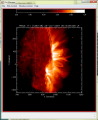
Figure 5. This figure shows PLOTMAN displaying a TRACE image (171 A, January 25 2007, 06:15:09) that has been pre-processed with default settings by the PrepServer. If multiple images were selected in the selection window (see Figure 4), they can be accessed by clicking on "Window_Control" in PLOTMAN's menu panel at the top.
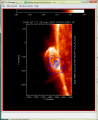
Figure 6. This figure shows PLOTMAN displaying an contour overlay of a reconstructed RHESSI clean 6-12keV image on an EIT image (171 A, January 25 2007, 07:00:13). The reconstruction of the RHESSI image as well as the pre-processing of the EIT images was done with the PrepServer.


Step 3: Visualizing
The data are visualized with PLOTMAN, which handles different data types such as light curves, images, spectra, and spectrograms. It provides basic display operations such as zooming, image overlays, solar rotation, etc. To display data with PLOTMAN from within SHOW_SYNOP, simply select a data file (Figure 2, blue box) and click on "Display". If the data file has already been pre-processed, it will be displayed immediately in a PLOTMAN window. Otherwise, it is first sent to the PrepServer for processing. If multiple files have been selected, all are displayed in the same PLOTMAN window.
Like all other GUIs discussed in this nugget, PLOTMAN can also be called from the command line. An example is shown in the script (link).
Command Line
Step 1: Finding the Data
Alternatively, the search can be initiated directly from the IDL command line using the procedure VSO_FILES. An example script found in the documentation (link) can be used to find, retrieve, and plot near-coincident images from SOHO/EIT and Hinode/XRT. The resulting images are shown in Figure ?.
Step 2: Pre-processing
VSO_PREP allows for data pre-processing from an SSW IDL command line:
Command
vso_prep, infile, outfile=outfile, instrument=instrument, oprep=oprep, _extra=extra
Input
infile: A local or remote file to be pre-processed
instrument: (optional) The instrument name. Default: Determined from infile
_extra: (optional) This parameter will collect all additional input parameters
Output
outfile: (optional) A file name for the pre-processed file. Default: prep_infile
oprep: (optional) An object that will be created after the pre-processing. It will allow for direct access to the data (i.e. for display)
; This searches the VSO for an EIT file and sends the returned link to the PrepServer for pre-processing

urls = vso_files('25-Jan-2007 06:55', inst='eit')

vso_prep, urls, out='eit.fits'

% VSO_PREP_MAIN: Prepping completed successfully.

% VSO_PREP_MAIN: Wrote prepped data to - /home/user/eit.fits


; This command will reconstruct a RHESSI clean 6-12keV image on the PrepServer

vso_prep, instrument='rhessi', im_time_interval=['25-Jan-2007 06:53:44', '25-Jan-2007 06:57:40'], image_alg='clean', im_energy_binning=[6,12]

% VSO_PREP_MAIN: Prepping completed successfully.

% VSO_PREP_MAIN: Wrote prepped data to - /home/user/prepped_temp.fits
Step 3: Visualizing
Conclusion
Documentation
Contacts
- SHOW_SYNOP: Dominic Zarro (dominic dot zarro at nasa dot gov)
- PrepServer: Laszlo I. Etesi (laszlo dot etesi at nasa dot gov)
- PLOTMAN: Kim Tolbert (kim dot tolbert at nasa dot gov)